

AICKO CAPTURE is a free screen capture tool for Windows 10 and 11. It takes a picture of your screen or records a video in MP4, and includes an editor to annotate, highlight and crop.
It keeps to the options people use most. A teacher can record a short lesson, a student can capture a solution, and anyone can show a friend how to do something. It is available from the Microsoft Store.

Get AICKO CAPTURE
At a glance
- Platform: Windows 10 and 11 (Microsoft Store)
- Price: free
- Image capture: zone, window or screen
- Video: MP4, 30 frames per second, full HD
- Editor: annotate, highlight, crop
What this free screen capture tool offers
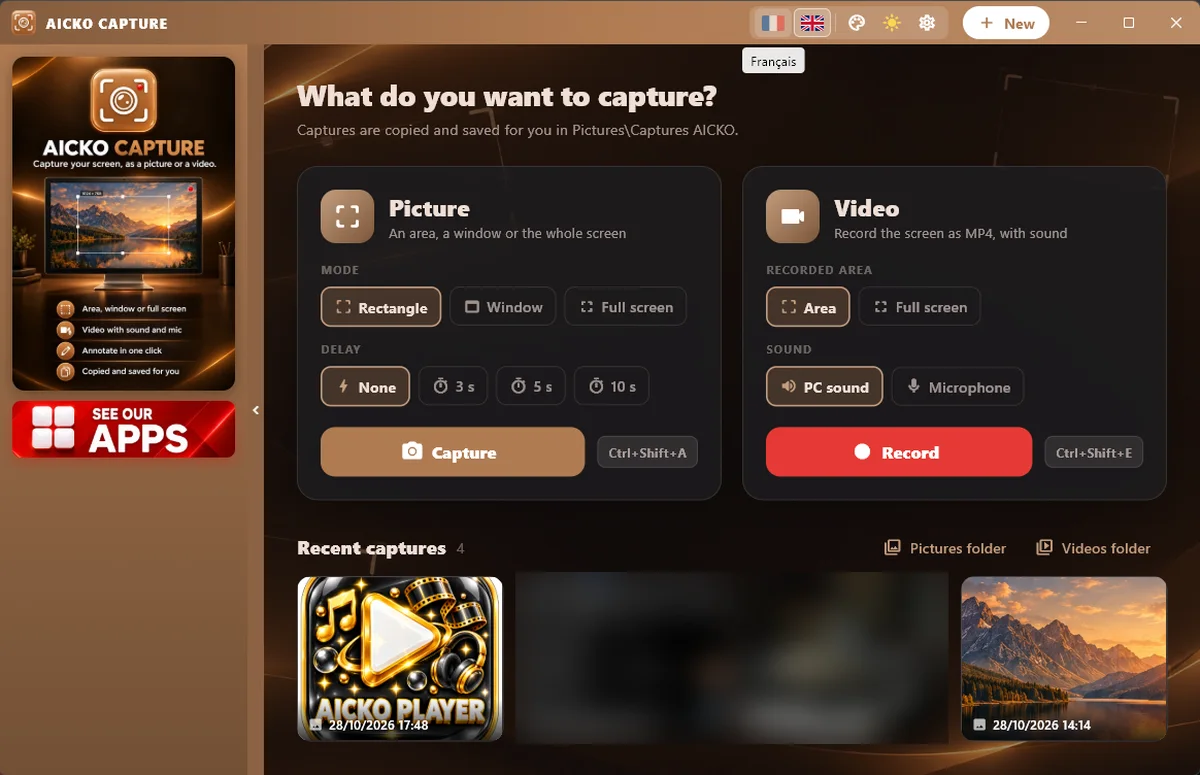
You choose an exact zone of the screen, a window, or the whole display. The image goes to the clipboard, and a right-click lets you save it under the name and place you choose. For video, a red frame surrounds the zone you record and a bar above it shows the REC indicator and a timer.
Recording runs at 30 frames per second in full HD, and you can pause and resume. The sound of the computer can be recorded as well.
Who it is for
It is made for people who explain things on screen: a teacher who solves a problem step by step, a student who must show how a program works, a parent who wants to keep a record of a school page. The caramel-brown design is calm and does not get in the way.
Main features
- Image capture of an exact zone, a window or the screen
- Video capture in MP4, with a visible frame, REC bar and timer
- Pause and resume during a recording
- Computer sound recording
- Editor to annotate, highlight and crop
- Keyboard shortcuts to start a capture quickly
Getting started
- Install AICKO CAPTURE from the Microsoft Store.
- Choose image or video.
- Select the zone or window to capture.
- For video, press record, pause if needed, then stop.
- Edit the result, then save it or copy it to the clipboard.
Why a maths learner will like it
Showing your work is a big part of learning maths. Capture a page of a solution from our lessons, circle the key step with the highlighter, and add a short note. For a longer explanation, record a video while you solve a problem and talk through your reasoning: explaining aloud is one of the best ways to check that you understand.
A typical use
A teacher wants to explain a graph to a class that missed the lesson. She starts a video capture, selects the window with the graph and begins to talk. The red frame shows her exactly what is recorded, and the timer tells her how long the clip has become. When she needs to think, she pauses. At the end, the clips are joined into one MP4. She then grabs a still image of the final graph, opens the editor, highlights the key point and saves it next to the video.
Tips
Capture only the zone that matters, so the picture is clear and light. Before a video, close notifications and hidden windows, then do a ten-second test to check the sound. Pause rather than stop when you need to think, and the clips are joined into one file at the end. Annotate with few marks: one arrow or one highlight is clearer than ten.
Frequently asked questions
Is there a free screen capture tool for Windows that records video?
Yes. AICKO CAPTURE is free for Windows 10 and 11. It records the screen in MP4, shows a red frame around the zone and a bar with a timer, and lets you pause and resume.
Can AICKO CAPTURE take a screenshot of one window or one zone?
Yes. You can capture an exact zone, a single window or the whole screen. The image is copied to the clipboard, and a right-click lets you save it where you want.
Does AICKO CAPTURE record the computer sound?
Yes. It can record the sound of the computer together with the video. If recording with a microphone is not possible, the program falls back to a recording without it.
Can I edit a capture in AICKO CAPTURE?
Yes. The built-in editor lets you annotate, highlight and crop an image before saving it. This is useful for marking a key step in a solution or pointing at a button in a program.
